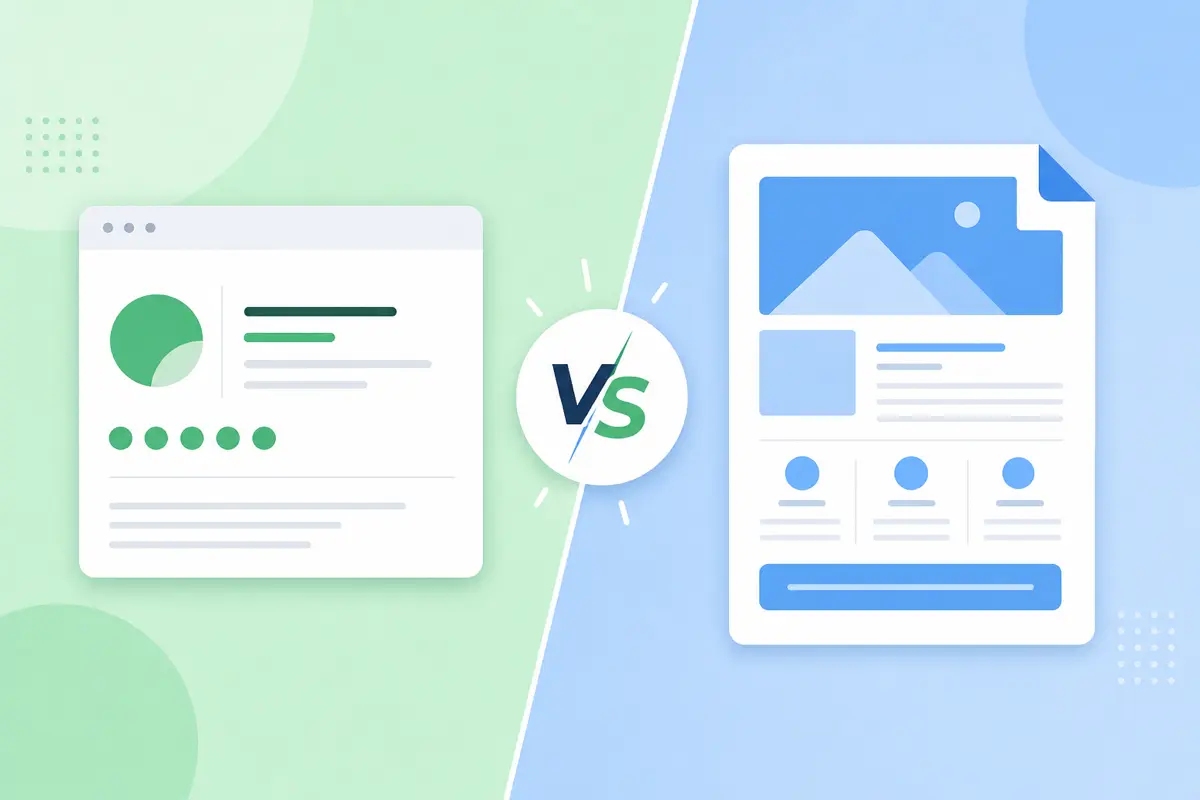
A Gmail signature is a short closing block on every email; a template is a full reusable message you send on demand. QwicMailer separates both cleanly — Sigs for contact info, Templates for complete message bodies — inside one Template Editor.
What a signature does
 Profile
In QwicMailer, open Template Editor → sidebar Sigs tab. Save one or more signature blocks, then insert them with Insert → Signature while building templates. You choose which signature pairs with which message.
What a template does
Templates hold full message bodies — subject, preheader, paragraphs, links, variables, and optional signature insert. You send them on demand through Quick Send or Inbox → Reply with template, not on every casual reply.
Build templates at /dashboard/templates. See how to create email templates in Gmail for the native Gmail context — then use QwicMailer for the reliable version.
You do not need Gmail Settings → Advanced → Templates. QwicMailer is your template library; Gmail is only the sending channel after you connect Google once.
Side-by-side comparison
| Feature | QwicMailer Signature (Sigs) | QwicMailer Template |
|---|---|---|
| Purpose | Closing / contact block | Full message body |
| Includes subject line | No | Yes |
| Variables | Optional in sig text | Full {{first_name}} support |
| When it sends | Inserted into template body | On demand via Quick Send |
| Best for | Name, title, phone, one link | Outreach, follow-ups, support |
When to use Sigs
- Every professional send needs your name and title at the bottom.
- Multiple personas — sales vs support signatures saved separately in the Sigs tab.
- Short and stable — four lines max; no promotional walls of text.
When to use Templates
- Recurring full messages — onboarding, demo follow-ups, interview invites.
- Variable personalization —
{{first_name}},{{company}},{{topic}}filled in Quick Send. - Team consistency — everyone sends the same approved body from the shared library.
Read the beginner's guide for workflow examples.
Common mistakes
Putting message bodies in signatures. Every "Thanks!" reply carries a sales pitch — recipients notice. Move that content to a template.
Duplicating signatures inside templates. Insert your Sig once via Insert → Signature at the template footer. Do not retype contact info manually in every template.
Example signature (Sigs tab)
Email preview
Email template
From: you@gmail.comTo: {{first_name}}@company.comSarah Chen Account Manager | QwicMailer sarah@company.com | (555) 123-4567 Book a call: https://calendly.com/sarah
Save in Sigs, insert into templates — not the other way around.
Example template (full message)
New templateEmail preview
Following up on our conversation
From: you@gmail.comTo: {{first_name}}@company.comHi {{first_name}}, Great speaking with you yesterday about {{topic}}. Here are the resources I mentioned: {{resource_link}} Happy to answer any questions. [Insert → Signature from Sigs tab]
End with an inserted Sig — not a hand-typed duplicate block.
Gmail signature settings vs QwicMailer Sigs
You can keep a minimal Gmail signature in Settings → General for casual one-off emails sent directly in Gmail. For templated outreach sent through QwicMailer, manage closings in the Sigs tab so the signature matches the template brand — logos, booking links, and compliance lines stay synchronized with your library. Two systems, two jobs: Gmail sig for ad-hoc mail, QwicMailer Sigs for repeatable sends.
Using both in one workflow
- Open Templates in the sidebar (
/dashboard/templates). - Click New template (or Start from scratch / pick a starter).
- In the Template Editor: set Subject, optional Preheader, and body text.
- Insert variables from the Variables sidebar — e.g.
{{first_name}},{{company}},{{topic}}. - Choose a Category (Sales, Recruiting, Business, etc.).
- Click Save. Your template appears in your QwicMailer library instantly.
Add step: insert your Signature from the Sigs tab before Save. Send through Quick Send when the template is ready.
Conclusion
Gmail signatures and templates serve different jobs — closings vs reusable bodies. QwicMailer unifies both in Template Editor with Sigs and Templates side by side. Start free with QwicMailer and stop mixing pitches into your signature.
Frequently asked questions
No. Signatures are short closings appended to every email. Templates are full reusable messages. In QwicMailer, use the Sigs tab for closings and Templates for message bodies.

Personalization Strategist
Emily writes about email variables, mail merge, and personalization tactics that scale without sounding generic.
7 articles on QwicMailer
Stop rewriting emails.
Start sending smarter.
Create reusable templates, personalize every email, and send everything from your connected Gmail account.
No credit card required