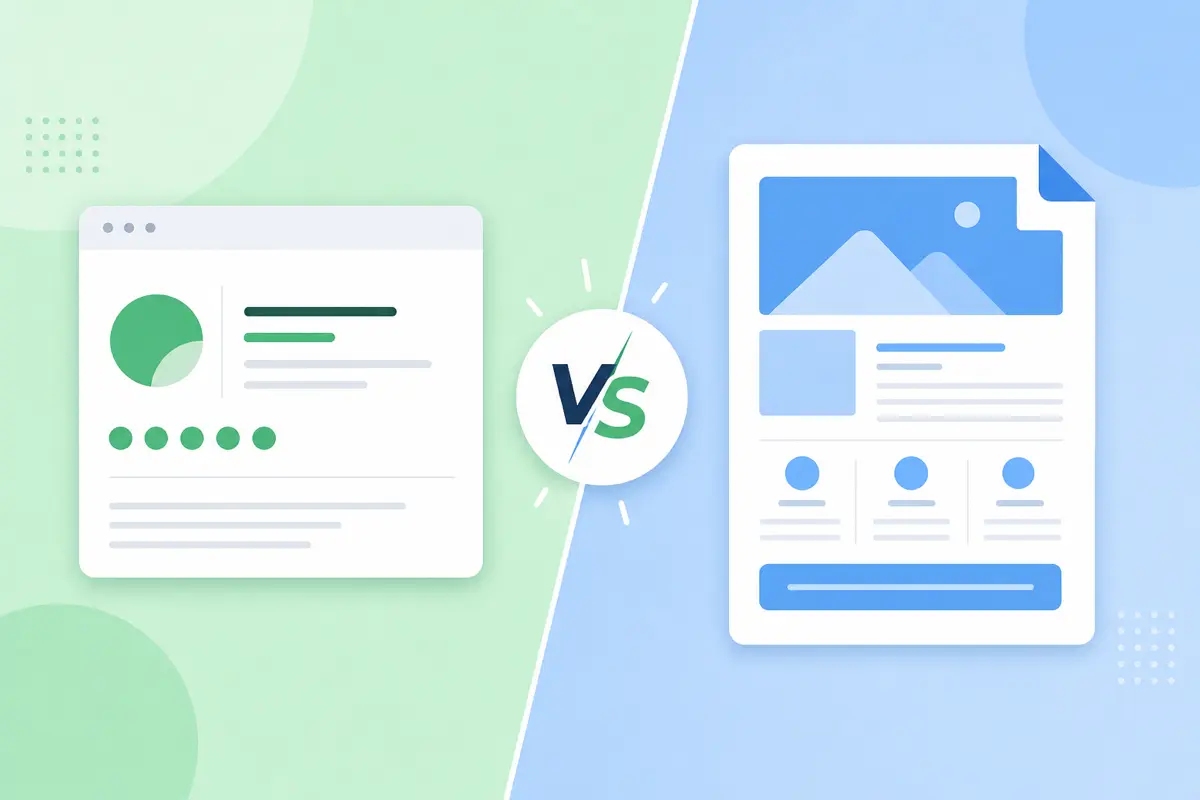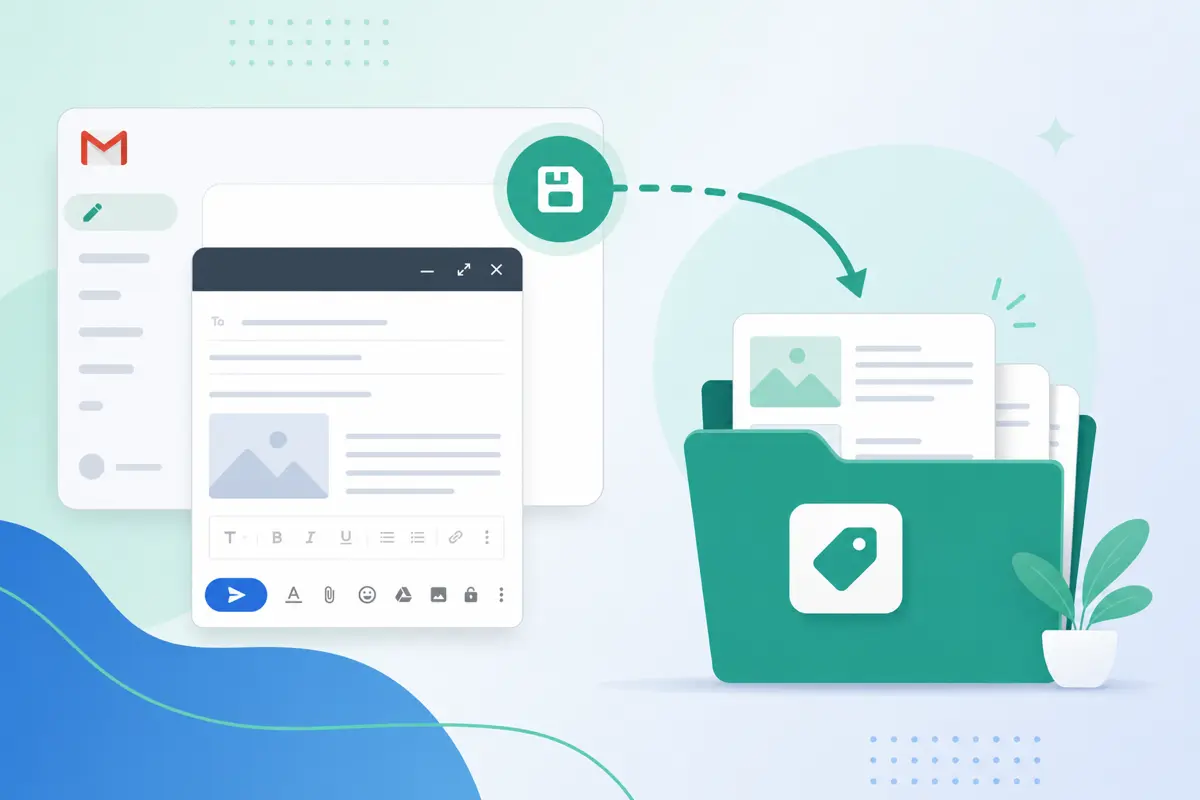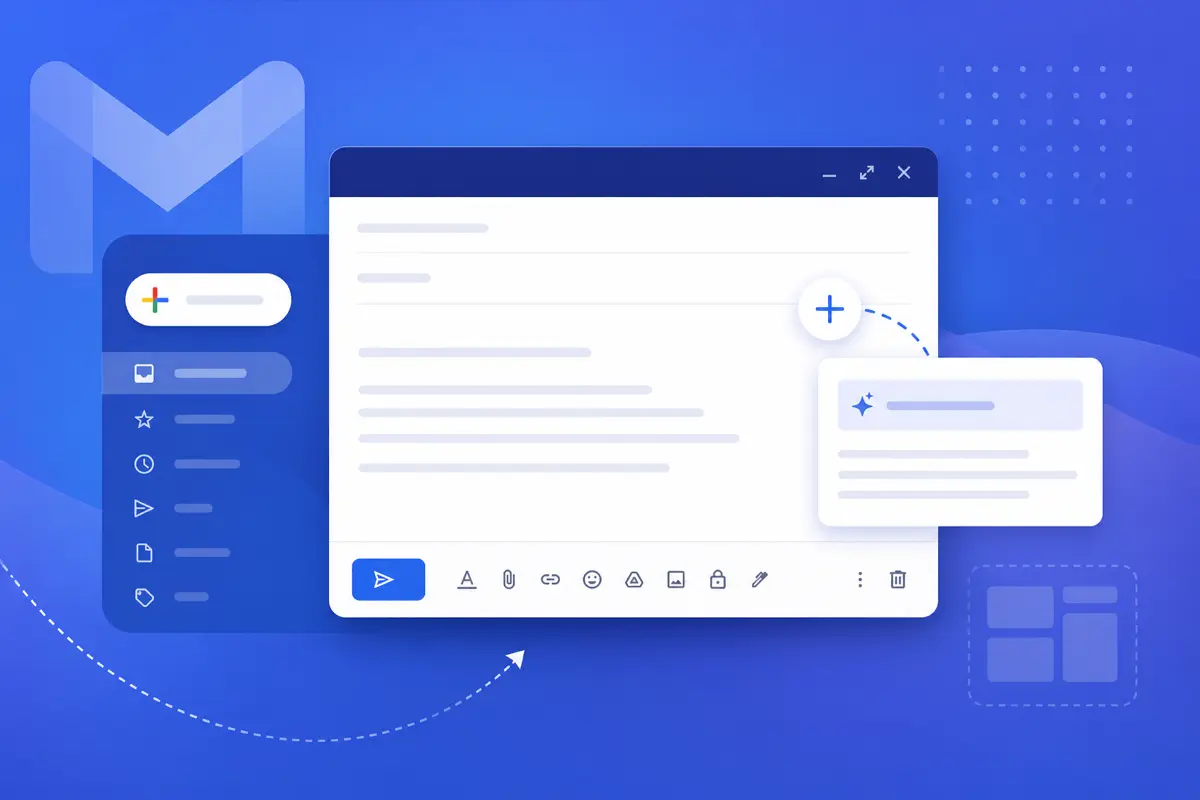
Use a draft when you are finishing one specific email later; use a template when you send the same message type again and again. In QwicMailer, saved Templates live in your library at /dashboard/templates, while Quick Send handles one-off personalized sends — without hoarding reusable copy in Gmail Drafts.
What a Gmail draft is
A Gmail draft is an unfinished one-time email in your Drafts folder — tied to a recipient, subject, and moment. Send it and it is gone. Many professionals mistakenly save reusable outreach there; the folder becomes unsearchable clutter.
What a QwicMailer template is
 Templates
You do not need Gmail Settings → Advanced → Templates. QwicMailer is your template library; Gmail is only the sending channel after you connect Google once.
Key differences in QwicMailer
| Attribute | Quick Send session | Saved Template |
|---|---|---|
| Purpose | Send this email now | Reuse weekly |
| Location | Quick Send flow | Templates library |
| Survives sending | N/A (message sent) | Yes — persists |
| Named / organized | By template pick | Custom name + category |
| Variables | Fill per send | Defined in editor |
| Mobile access | Browser Quick Send | Browser Templates + Quick Send |
When to use Quick Send (one-off)
Quick Send- You picked a template and need to customize variables for one recipient today.
- You are running a small bulk send with per-row personalization.
- You want Live preview before a single sensitive message goes out.
- Go to Quick Send (
/dashboard/quick-send). - Pick your template.
- Add recipient(s) from Contacts or type an address — choose Single email or Bulk send.
- Fill any variable fields; review the Live preview.
- Click Send email. The message sends from your connected Gmail address and appears in Gmail Sent.
When to save a Template (reusable)
- You send the same type of email every week — follow-ups, check-ins, onboarding.
- Your team needs a shared starting point with
{{first_name}}and categories. - You want a clean Gmail Drafts folder — reusable copy belongs in QwicMailer, not Drafts.
- Open Templates in the sidebar (
/dashboard/templates). - Click New template (or Start from scratch / pick a starter).
- In the Template Editor: set Subject, optional Preheader, and body text.
- Insert variables from the Variables sidebar — e.g.
{{first_name}},{{company}},{{topic}}. - Choose a Category (Sales, Recruiting, Business, etc.).
- Click Save. Your template appears in your QwicMailer library instantly.
The Drafts folder trap
Saving reusable messages as Gmail drafts feels convenient until you have forty nearly identical follow-ups. Templates solve this with names, categories, and search. See how to organize Gmail templates for naming ideas that apply directly to QwicMailer categories.
Editor drafts vs saved templates
New templateCombine both in one workflow
- Insert a saved template in Quick Send.
- Fill variables for the specific recipient.
- Preview in Live preview — pause if you need more info.
- Send when ready. The library template remains untouched.
For signature vs template boundaries, see Gmail signature vs template.
Example reusable template
Email preview
Post-demo follow-up — {{company}}
From: you@gmail.comTo: {{first_name}}@company.comHi {{first_name}}, Thanks for joining today's demo of {{product}}. Here is the recap for {{company}}: - Key benefit: {{benefit}} - Next step: {{next_step}} Reply with any questions. Best, {{your_name}}
Save once in Template Editor. Every future demo gets a two-minute Quick Send — not a new Gmail draft.
When both fall short in Gmail alone
Gmail drafts and native templates lack variables, team libraries, and send tracking. QwicMailer bridges all three while sending from your real Gmail address.
Conclusion
Gmail drafts are for one specific email later; QwicMailer Templates are for messages you send again and again. Stop hoarding reusable copy in Drafts — save to your library and Quick Send. Start free with QwicMailer.
Frequently asked questions
A saved Template lives in your library at /dashboard/templates for repeated use. A Quick Send session is a one-off send — like finishing a specific email — though Template Editor also auto-saves in-progress editor drafts.

Email Templates Editor
Ryan helps teams build reusable Gmail templates that save hours every week without losing a personal touch.
10 articles on QwicMailer
Stop rewriting emails.
Start sending smarter.
Create reusable templates, personalize every email, and send everything from your connected Gmail account.
No credit card required