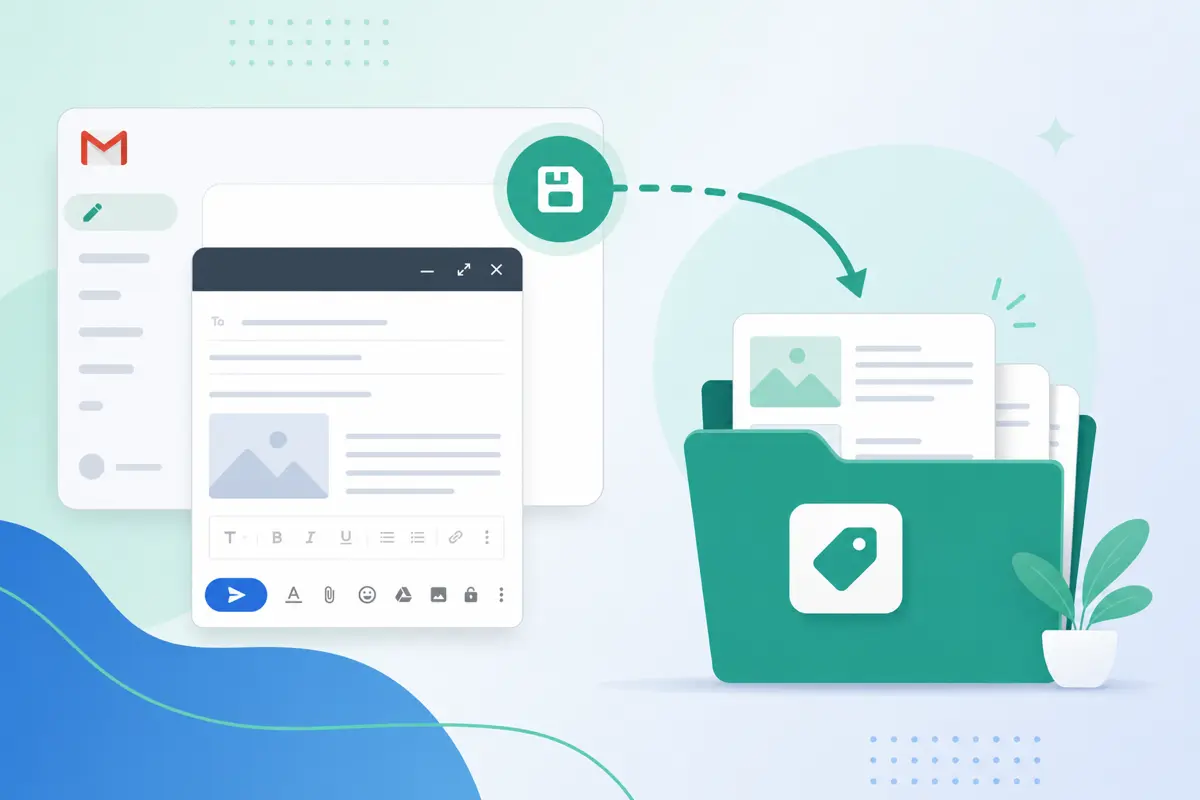
To save an email as a template for Gmail, paste your message into QwicMailer's Template Editor, add a subject line and variables, choose a category, and click Save. The entire message is stored in your library for one-click sending from your connected Gmail address.
When to save an email as a template
Not every email deserves template status. Save messages you expect to send again with minor edits: follow-ups that worked, support answers you give weekly, intro emails that got replies, or meeting scheduling notes your team uses constantly.
The best candidates are emails you have already tested in the wild. If a message got a strong reply rate or saved you from a long back-and-forth, that is your template.
Step-by-step: save any email as a template
 New template
- Open Templates (
/dashboard/templates) and click New template. - Paste or write the email content you want to reuse in the Template Editor.
- Set the Subject and optional Preheader.
- Replace specific names and details with variables —
{{first_name}},{{company}},{{topic}}— from the Variables sidebar. - Pick a Category and a clear, searchable name.
- Click Save.
If you are saving from a sent email, open it in Gmail Sent or Sent Emails (/dashboard/sent-emails), copy the content, then follow the steps above.
Saving from a reply thread
Inbox- Open the thread in Inbox (
/dashboard/inbox) or Gmail. - Copy your reply text (not the quoted thread).
- Go to Templates → New template and paste.
- Generalize specifics into variables and Save.
For faster reply workflows next time, read how to insert a template in a Gmail reply.
Example: turning a great follow-up into a template
Suppose this follow-up got you three replies last week:
Email preview
Re: {{topic}} — following up
From: you@gmail.comTo: {{first_name}}@company.comHi {{first_name}}, Wanted to bump this to the top of your inbox. I put together a one-page summary of how teams like {{company}} cut email time in half — happy to send it over if useful. No pressure either way. Best, {{your_name}}
Paste this into the Template Editor, save it as "Follow-Up – Value Add," and send it through Quick Send in ten seconds instead of rewriting from memory.
Naming conventions that save time
Use a consistent format so your template list stays scannable:
- Category – Purpose: "Sales – Intro", "Support – Refund Policy"
- Include version numbers when you iterate: "Sales – Intro v2"
When your library grows past ten templates, our guide on how to organize Gmail templates walks through a folder-style naming system using categories.
Updating vs. creating new templates
When you improve the same message, open the template in the editor and Save to overwrite. When you want to A/B test two versions, duplicate the template and save as "v2." To update wording without starting over, see how to edit a saved Gmail template.
Common mistakes when saving templates
- Saving with typos. Proofread before saving — every future send inherits the error.
- Forgetting the subject line. An empty subject means extra work every send.
- Saving one-off emails. Templates cluttered with specifics (dates, one-time details) become useless fast. Generalize before saving.
Why QwicMailer beats copy-paste from Sent mail
TemplatesConclusion
Saving an email as a template in QwicMailer is a thirty-second habit that compounds into hours saved. Capture your best messages while they are fresh, name them clearly, and reuse them through Quick Send. Ready for variables, tracking, and team templates? Try QwicMailer free.
Frequently asked questions
Yes. Open the sent message in Gmail or QwicMailer Sent Emails, copy the subject and body, paste into a new template in the Template Editor, add variables, and click Save.

Gmail Productivity Coach
David shares practical Gmail tips, shortcuts, and inbox habits to help professionals reclaim their time.
9 articles on QwicMailer
Stop rewriting emails.
Start sending smarter.
Create reusable templates, personalize every email, and send everything from your connected Gmail account.
No credit card required