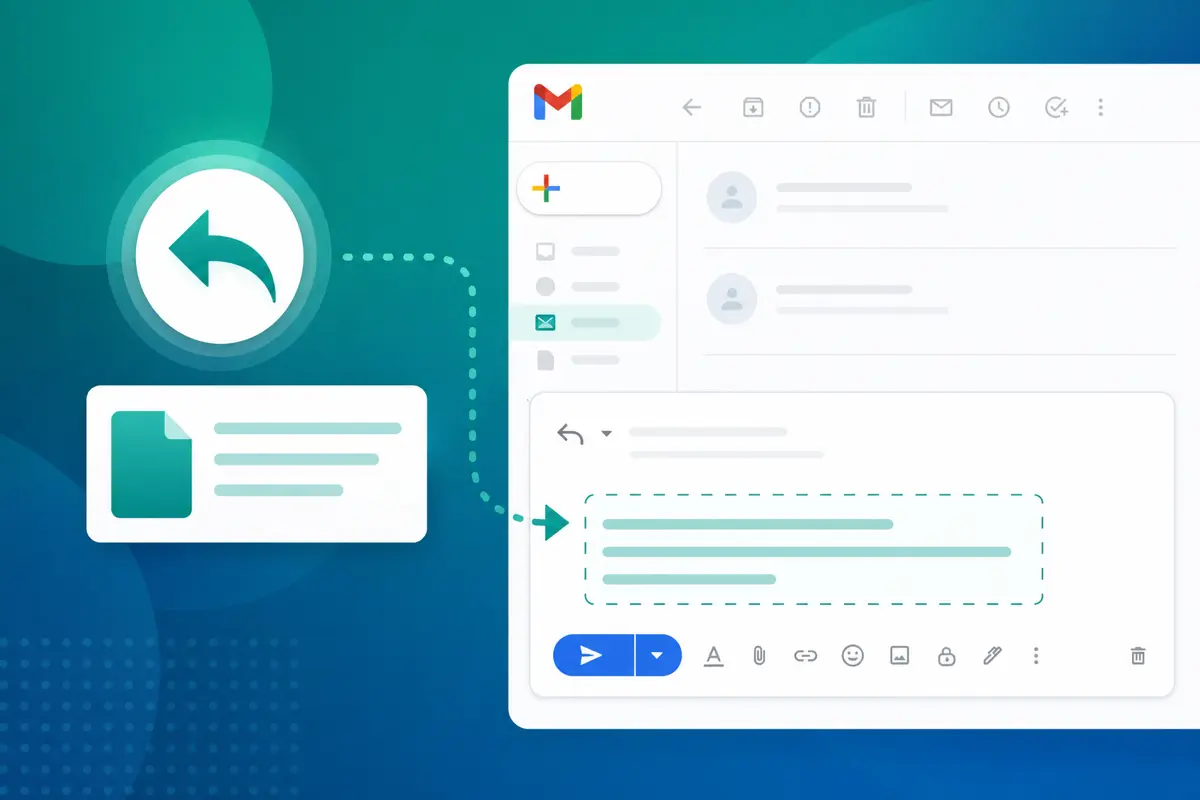
To insert a template in a Gmail reply, open Inbox (/dashboard/inbox) in QwicMailer, select the thread, click Reply with template, choose your saved message, fill variables, and send. The reply goes from your connected Gmail address as a normal threaded response.
Why reply templates matter most
Most template tutorials focus on new compose emails, but replies are where repetitive typing hurts most. Support tickets, sales threads, scheduling back-and-forth, and project updates all happen inside reply chains. A reply template gives you a polished response in seconds while keeping the conversation context intact.
Step-by-step: reply with a template
 Inbox
Inbox- Open Inbox (
/dashboard/inbox) and select the email thread. - Click Reply with template.
- Choose the template from your library.
- Fill variables —
{{first_name}},{{resolution}}, etc. — auto-populated from your contacts where available. - Review the preview and click Send reply.
The reply appears in the Gmail thread normally. Check Sent Emails (/dashboard/sent-emails) for delivery status.
Example: support reply template
Email preview
Email template
From: you@gmail.comTo: {{first_name}}@company.comHi {{first_name}}, Thanks for the details. I have looked into this and {{resolution_summary}}. You should see the change within {{timeframe}}. Reply here if anything looks off. Best, {{your_name}}
Pick this template in Inbox, variables fill from the contact record, and send. No retyping your standard support language.
Example: sales reply in an active thread
When a prospect replies with "Tell me more," use your product overview template:
Email preview
Email template
From: you@gmail.comTo: {{first_name}}@company.comGreat question, {{first_name}}. Here is the short version: {{product}} helps teams like {{company}} {{value_prop}}. Three things clients mention most: 1. {{benefit_1}} 2. {{benefit_2}} 3. {{benefit_3}} Happy to jump on a call if you want the full walkthrough.
Tips for reply templates that feel personal
- Customize the first line to reference something from their last message. Templates handle the body; you handle the human touch in the preview.
- Check the recipient list before sending. Confirm the right people are on the thread.
- Update subject lines if the topic shifted — QwicMailer lets you adjust before sending.
- Track performance in Analytics to see which reply templates get the best response rates.
Saving a great reply as a new template
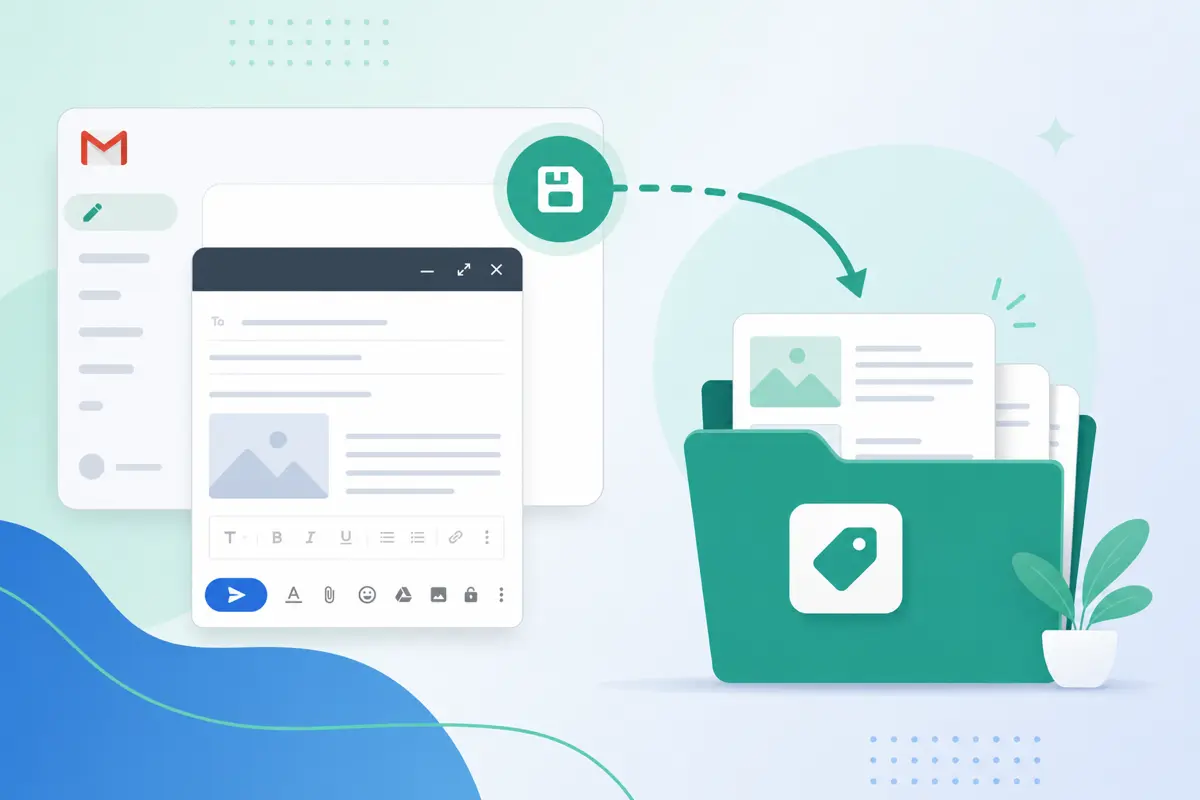
New template- Open the sent reply in Inbox or Sent Emails.
- Copy the reply portion (not the quoted thread).
- Go to Templates → New template, paste, and generalize specifics into variables.
- Save — full guide: save email as template in Gmail.
Reply templates vs. new compose templates
Some templates work in both contexts (follow-ups, thank-yous). Others are reply-specific:
- Reply-specific: support resolutions, answers to FAQs, thread continuations.
- Compose-specific: cold intros, first outreach, new meeting requests.
Organize them with categories and prefixes per our organize Gmail templates guide.
Prerequisites
If you do not have templates yet:
- Sign in and connect Gmail.
- Create at least one template.
- Open Inbox and try Reply with template.
Conclusion
Replying with templates through QwicMailer eliminates the most repetitive part of email — responding to threads you have answered a hundred times before. Variables auto-fill, replies send from Gmail, and tracking shows what works. Start free with QwicMailer.
Frequently asked questions
Yes. Open QwicMailer in your mobile browser, go to Inbox, select the thread, and use Reply with template. No desktop Gmail required.

Gmail Productivity Coach
David shares practical Gmail tips, shortcuts, and inbox habits to help professionals reclaim their time.
9 articles on QwicMailer
Stop rewriting emails.
Start sending smarter.
Create reusable templates, personalize every email, and send everything from your connected Gmail account.
No credit card required