Organize email templates for Gmail in QwicMailer using Categories, consistent naming conventions, and monthly maintenance. Unlike Gmail's flat alphabetical menu, QwicMailer gives you filterable categories, search, and a proper template library that scales past twenty messages.
The organization problem
A flat list works at five templates. At twenty-five, you scroll past irrelevant options every time. At fifty, people give up and go back to copy-pasting from Sent mail — defeating the purpose entirely.
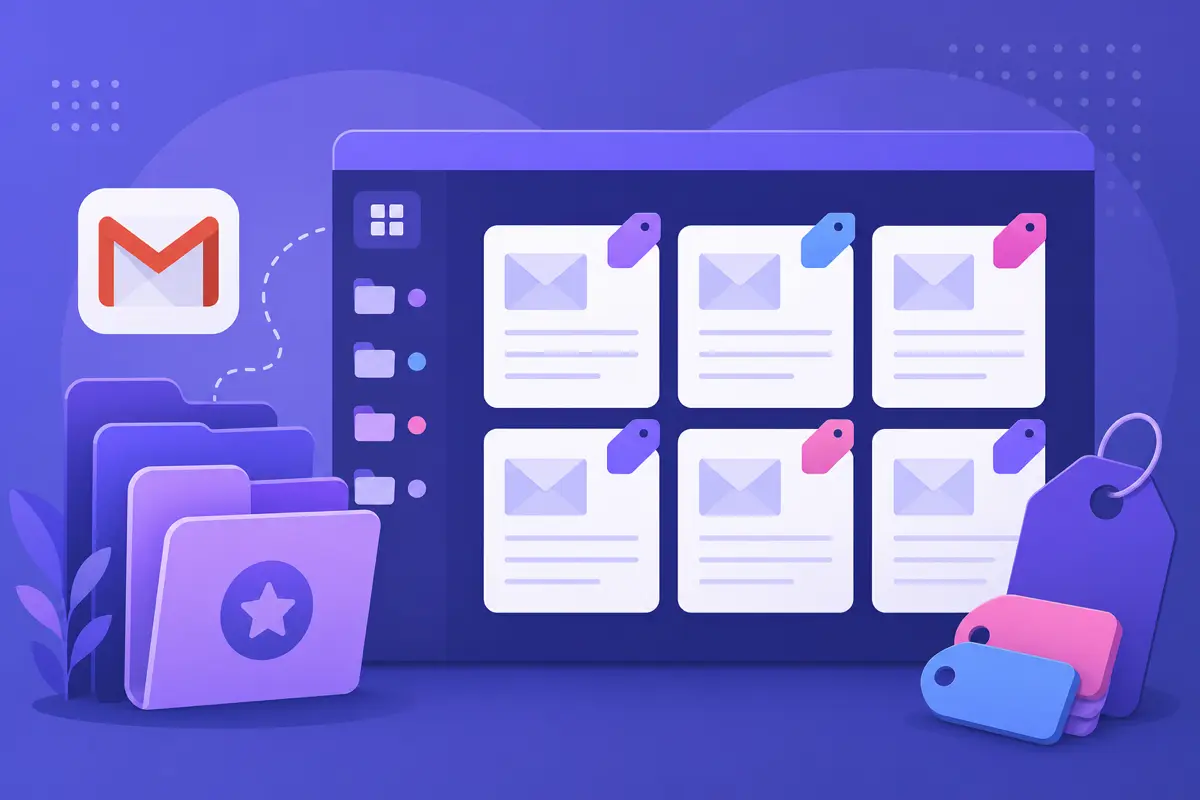
QwicMailer solves this with categories and search. Organization is still a habit, but the tooling supports libraries that actually grow.
Categories: your primary organization layer
 Templates
- Sales — intros, follow-ups, breakup emails
- Support — common resolutions, escalation notices
- Recruiting — outreach, interview scheduling
- Business — meeting requests, thank-yous, internal updates
Filter by category on the Templates page to see only what you need. No scrolling through unrelated options.
Naming convention: the prefix system
New templateCodeSales – Cold Intro Sales – Follow-Up Day 3 Sales – Follow-Up Day 7 Sales – Breakup Email Support – Password Reset Support – Refund Policy Support – Escalation Notice
Categories handle broad grouping; prefixes handle fine-grained sorting within the list.
Numbering for sequences
Follow-up sequences benefit from numbered suffixes:
CodeSales – Follow-Up 01 Initial Sales – Follow-Up 02 Bump Sales – Follow-Up 03 Value Add Sales – Follow-Up 04 Breakup
Numbers keep sequence order visible even when sorting alphabetically within a category.
Version control without chaos
When testing new wording, duplicate and save versions explicitly:
- Sales – Intro v1 (current)
- Sales – Intro v2 (testing)
After two weeks, compare results in Analytics, delete the loser, and rename the winner to Sales – Intro. Guide for updates: edit saved Gmail template.
The monthly maintenance ritual
Block fifteen minutes on your calendar for template housekeeping:
- Audit usage. Check Analytics — which templates did you send this month?
- Delete stale templates. Anything unused for sixty days goes — unless it is seasonal.
- Update changed content. Pricing, links, team names, product features.
- Consolidate duplicates. Two templates serving the same purpose? Merge into one.
- Check variables. Ensure
{{variables}}are consistent across the library.
Team organization
QwicMailer supports shared template libraries. When teams need consistent messaging:
- Assign templates to shared Categories everyone can access.
- Use one naming convention across the team — document it in a shared doc.
- Assign a template owner who runs the monthly maintenance ritual.
Without shared infrastructure, every team member maintains a slightly different library — and messaging drifts.
When your library outgrows basic organization
Even with good habits, you may need more as you scale:
- Bulk send through Quick Send for campaigns.
- Variable auto-fill from your contact list.
- Open tracking to see which templates perform.
- Inbox reply templates for high-volume support.
QwicMailer includes all of this — Gmail is just the delivery channel.
Building your library from scratch
If you are starting fresh, follow this order from our beginner's guide:
- Sign in and connect Gmail.
- Create five core templates.
- Assign categories and prefixes immediately — do not wait until you have twenty.
- Set a monthly maintenance reminder today.
Conclusion
Organizing email templates in QwicMailer comes down to categories, prefixes, numbered sequences, and monthly maintenance. These habits keep your library usable as it grows. Try QwicMailer free for folders, search, variables, and team sharing.
Frequently asked questions
Yes. Assign each template a Category — Sales, Recruiting, Support, Business, and more. Filter your library by category to find templates instantly.

Personalization Strategist
Emily writes about email variables, mail merge, and personalization tactics that scale without sounding generic.
7 articles on QwicMailer
Stop rewriting emails.
Start sending smarter.
Create reusable templates, personalize every email, and send everything from your connected Gmail account.
No credit card required