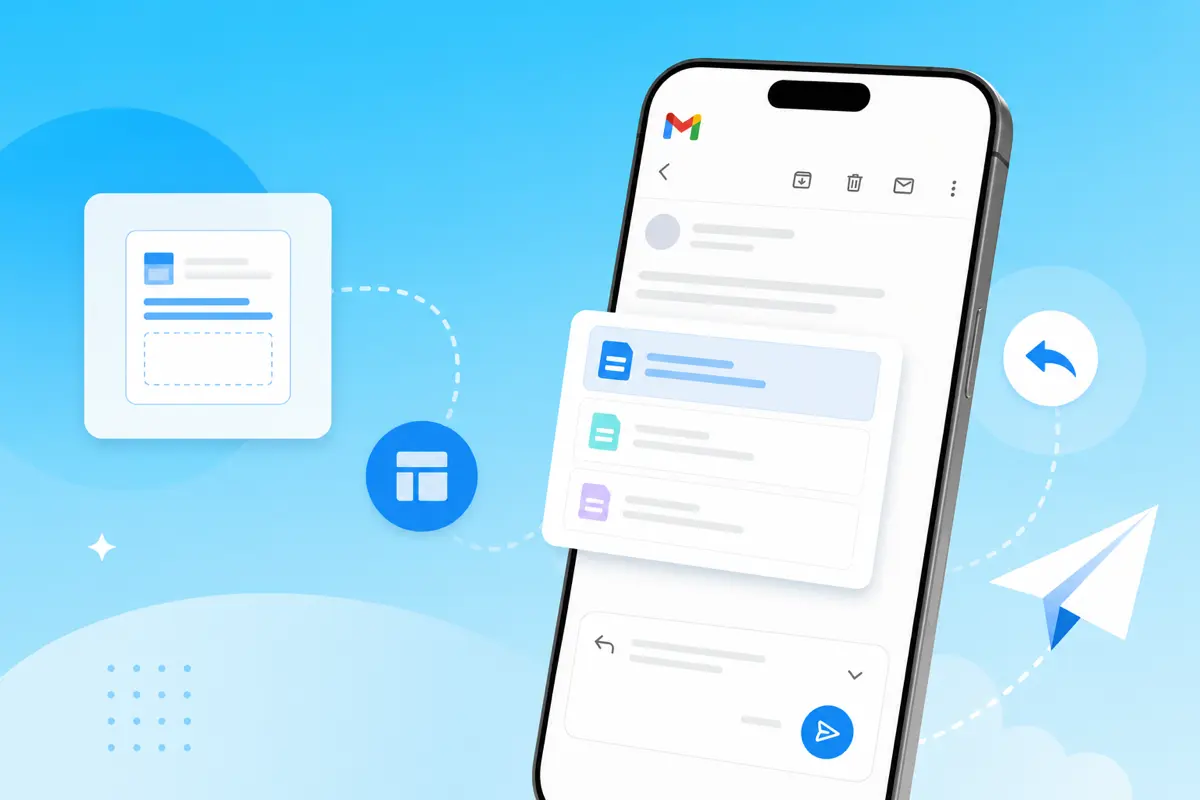
You can use email templates with Gmail on mobile through QwicMailer. Open the app in any mobile browser, pick a template from your library, fill variables, and send from your connected Gmail address. No desktop required, no Gmail settings, no copy-paste workarounds.
What works on mobile with QwicMailer vs. native Gmail
| Action | QwicMailer (mobile browser) | Gmail Mobile App |
|---|---|---|
| Create templates | Yes | No |
| Send with templates | Yes | No |
| Edit templates | Yes | No |
| Reply with templates | Yes | No |
| Variable auto-fill | Yes | No |
| Smart Reply | No | Yes |
The native Gmail app supports Smart Reply (AI-generated short responses) but not user-created templates with variables. QwicMailer fills that gap on any device.
Why native Gmail templates fail on mobile
Google's built-in Templates feature requires desktop Gmail and hides behind Advanced settings. Even after enabling, the mobile app never exposes the Templates menu. Professionals who need templated sends on the go need a tool that works in the browser — that is QwicMailer.
Send a template from your phone
 Quick Send
- Open QwicMailer in Safari or Chrome on your phone.
- Go to Quick Send (
/dashboard/quick-send). - Pick your template.
- Add recipient(s) from Contacts or type an address.
- Fill variables, review the Live preview, and tap Send email.
The message sends from your Gmail address and appears in Gmail Sent on all your devices.
Reply with a template on mobile
Inbox- Open Inbox (
/dashboard/inbox). - Select the thread.
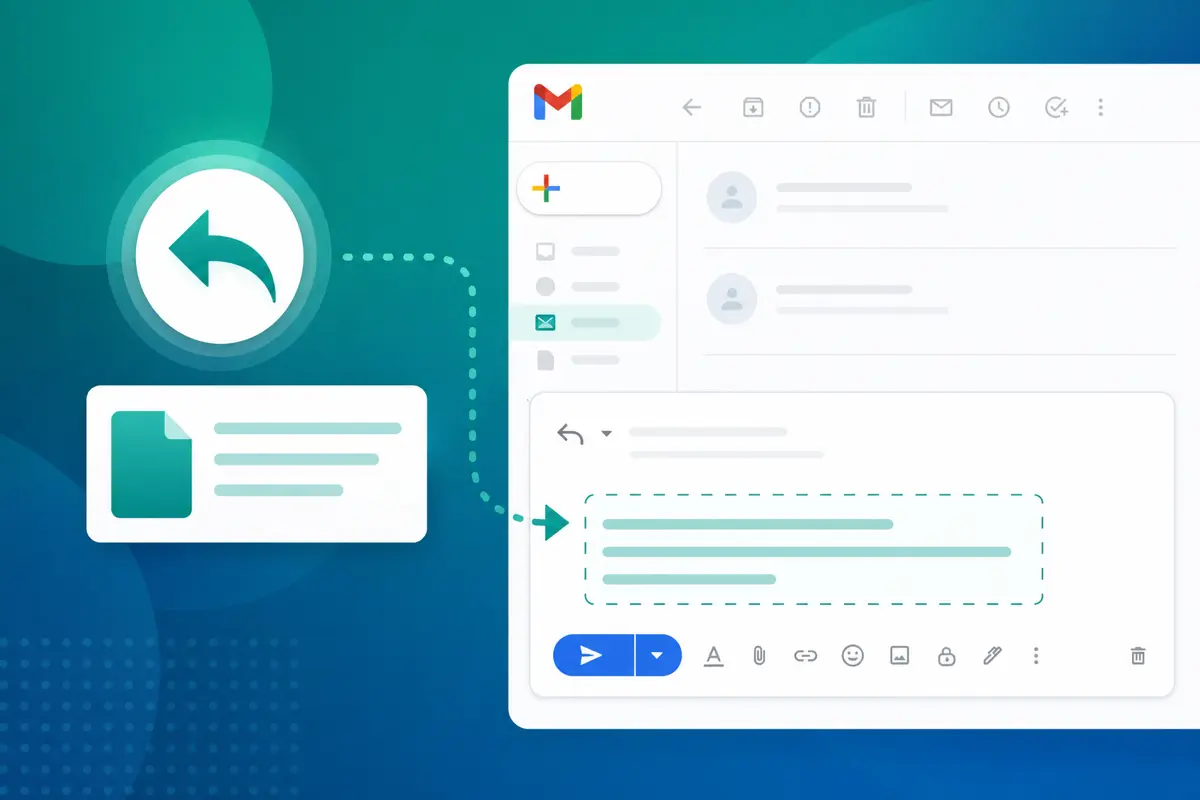
- Tap Reply with template → choose your template.
- Fill variables → Send reply.
Full walkthrough: how to insert a template in a Gmail reply.
Create and edit templates on mobile
New templateYou are not limited to sending. On your phone:
- Open Templates (
/dashboard/templates). - Tap New template or Edit on an existing one.
- Update Subject, body, variables, and Category.
- Tap Save.
Your changes sync instantly across desktop and mobile.
Quick mobile template example
Email preview
Re: {{topic}}
From: you@gmail.comTo: {{first_name}}@company.comHi {{first_name}}, Thanks for getting back to me. {{response_summary}} Let me know if you have questions. Best, {{your_name}}
Save this once, then send it from your phone through Inbox replies whenever the thread fits.
Tips for mobile template workflows
- Add QwicMailer to your home screen for one-tap access (Safari → Share → Add to Home Screen).
- Keep templates short. Shorter messages are easier to preview on a small screen.
- Use categories to find templates fast — see how to organize Gmail templates.
- Check Sent Emails after sending to confirm delivery.
Setting up for cross-device use
- Sign in and connect Gmail on desktop.
- Create your core library.
- Send from mobile anytime — no extra sync steps needed.
- Edit on whichever device is convenient; changes apply everywhere.
Gmail on iPad with keyboard
iPad users get the full QwicMailer experience in Safari — template editing, Quick Send, and Inbox replies all work well on a larger screen. The native Gmail app still lacks template support, but QwicMailer does not.
Conclusion
Gmail templates on mobile are fully supported through QwicMailer — create, edit, send, and reply from any device. No desktop workarounds or notes-app copy-paste required. Start free with QwicMailer.
Frequently asked questions
Yes. Open QwicMailer in Safari or Chrome on your iPhone, go to Quick Send or Inbox, pick a template, and send. The email goes from your connected Gmail address.

Sales Enablement Writer
James focuses on sales follow-ups, cadences, and templates that help reps book more meetings.
6 articles on QwicMailer
Stop rewriting emails.
Start sending smarter.
Create reusable templates, personalize every email, and send everything from your connected Gmail account.
No credit card required