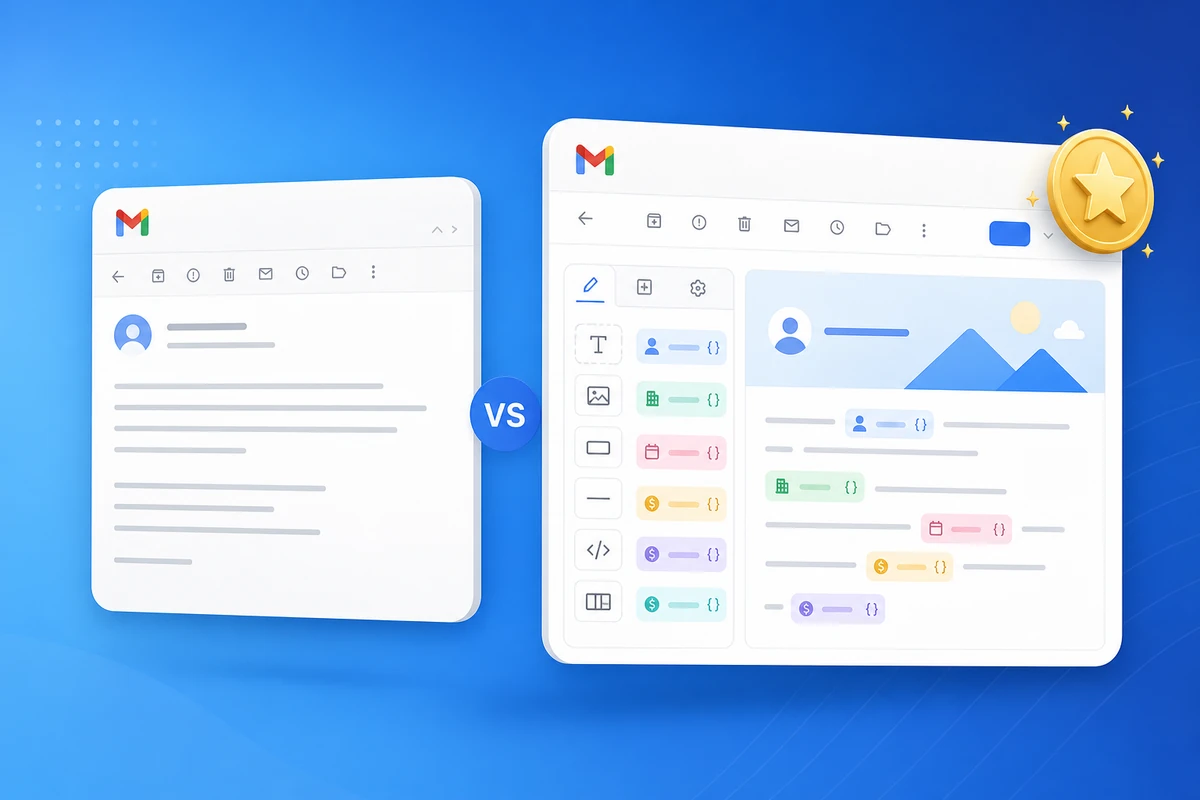
To personalize email with name in Gmail, skip manual find-and-replace. Use QwicMailer gmail merge fields workflow: store {{first_name}} in templates, map contacts, preview, send.
Step 1: Add name variables to your template
 New template
In the Template Editor:
- Subject:
{{first_name}}, quick question on {{topic}} - Body opener:
Hi {{first_name}},
Add company and role variables where relevant.
Step 2: Build your contact list
Import CSV or add contacts manually. Tag lists for sales, recruiting, or support — manage email contacts for repeat sends without spreadsheets.
Step 3: Preview before send
Quick SendQuick Send shows each rendered message. Catch "Hi {{first_name}}" mistakes before they reach Gmail.
Bulk personalize without losing 1:1 tone
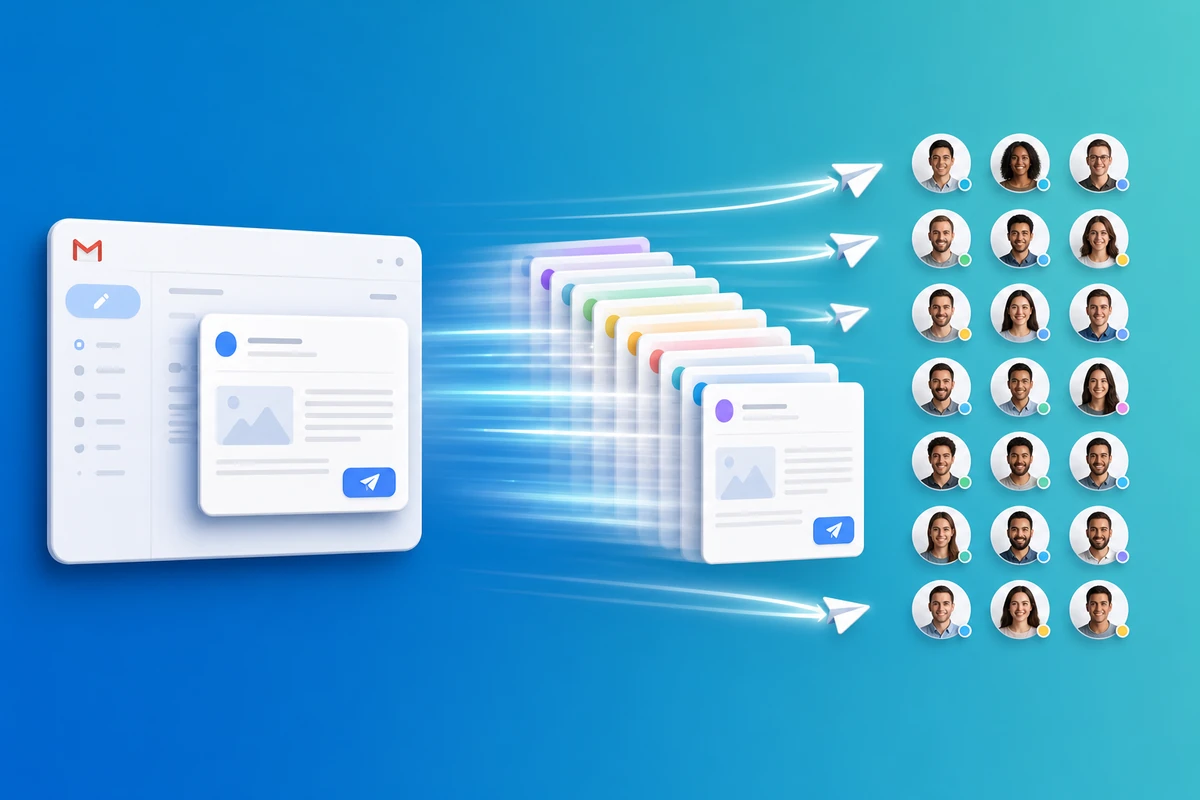
Sending to a list? Each recipient still gets their own personalize email with name render — see send same email to 25 people.
Conclusion
Name personalization is a merge-field problem, not a typing problem. Try QwicMailer free and add {{first_name}} to your next template.
Frequently asked questions
Gmail compose does not offer structured merge fields. QwicMailer fills {{first_name}} from your contact list at send time.

Personalization Strategist
Emily writes about email variables, mail merge, and personalization tactics that scale without sounding generic.
7 articles on QwicMailer
Stop rewriting emails.
Start sending smarter.
Create reusable templates, personalize every email, and send everything from your connected Gmail account.
No credit card required