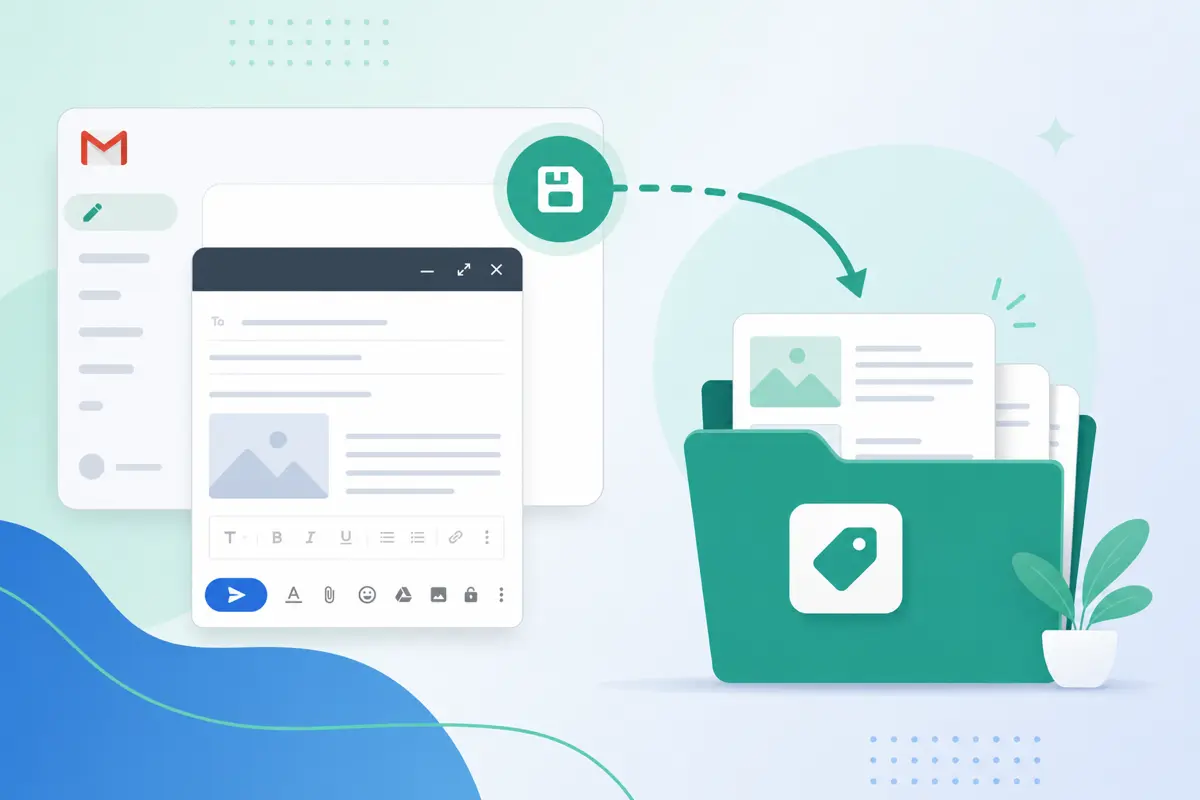
QwicMailer gives you a direct edit screen for every template. Open Templates, click Edit on the template you want to change, update subject, body, or variables in the Template Editor, and click Save — or duplicate first if you want to keep the original version.
Why templates need regular updates
Products change, pricing shifts, team members leave, and links break. A template you wrote six months ago may reference an old calendar link, a retired colleague's name, or an offer you no longer run. Stale templates erode trust faster than no template at all.
Schedule a monthly five-minute review of your most-used templates. If you send a template more than twice a week, it deserves a quarterly refresh.
Method 1: Edit and save in place
 New template
- Go to Templates (
/dashboard/templates). - Click the template card or Edit.
- Make your changes to Subject, Preheader, body, or variables.
- Click Save.
Your updated template is live immediately for all future Quick Send and Inbox replies.
Method 2: Duplicate as a new version
When you want to test new wording without losing the original:
- Open the existing template and use Duplicate (or copy content into New template).
- Edit the content.
- Save with a versioned name like "Client Intro v2."
- Compare reply rates over a few weeks in Analytics, then delete the underperformer.
Example: updating a pricing template
Your old template might look like this:
Email preview
{{company}} — pricing overview
From: you@gmail.comTo: {{first_name}}@company.comHi {{first_name}}, Thanks for your interest. Our plans start at $29/month for individuals and $79/month for teams. Here is the full breakdown: [link] Let me know if you have questions. Best, {{your_name}}
After a price change, open the template in the editor, update the numbers and link, then Save. Every future send through Quick Send reflects the new pricing automatically.
Editing templates with variables
Keep variable names consistent when editing. Changing {{first_name}} to {{name}} in one template but not others creates confusion across your library. QwicMailer's Variables sidebar shows available fields — pick from the list to stay uniform.
Bulk updates across many templates
TemplatesKeeping your library clean after edits
After saving, verify the change stuck:
- Go to Quick Send and select the template.
- Add a test contact and review the Live preview.
- Scan subject, body, links, and variables.
If you created a v2 instead of overwriting, delete the outdated version to avoid sending the wrong one by mistake.
Related workflows
- First time creating templates? Start with how to create email templates in Gmail.
- Saving a great sent email? See how to save an email as a template.
- Just getting started? Follow how to enable templates for Gmail.
Conclusion
Editing templates in QwicMailer is straightforward: open, revise, save. Do it regularly and your reusable messages stay accurate and effective. Start free with QwicMailer for centralized template management with variables and tracking.
Frequently asked questions
Yes. Go to Templates, click the template or Edit, make changes in the Template Editor, and click Save. Updates apply to all future sends immediately.

Personalization Strategist
Emily writes about email variables, mail merge, and personalization tactics that scale without sounding generic.
7 articles on QwicMailer
Stop rewriting emails.
Start sending smarter.
Create reusable templates, personalize every email, and send everything from your connected Gmail account.
No credit card required