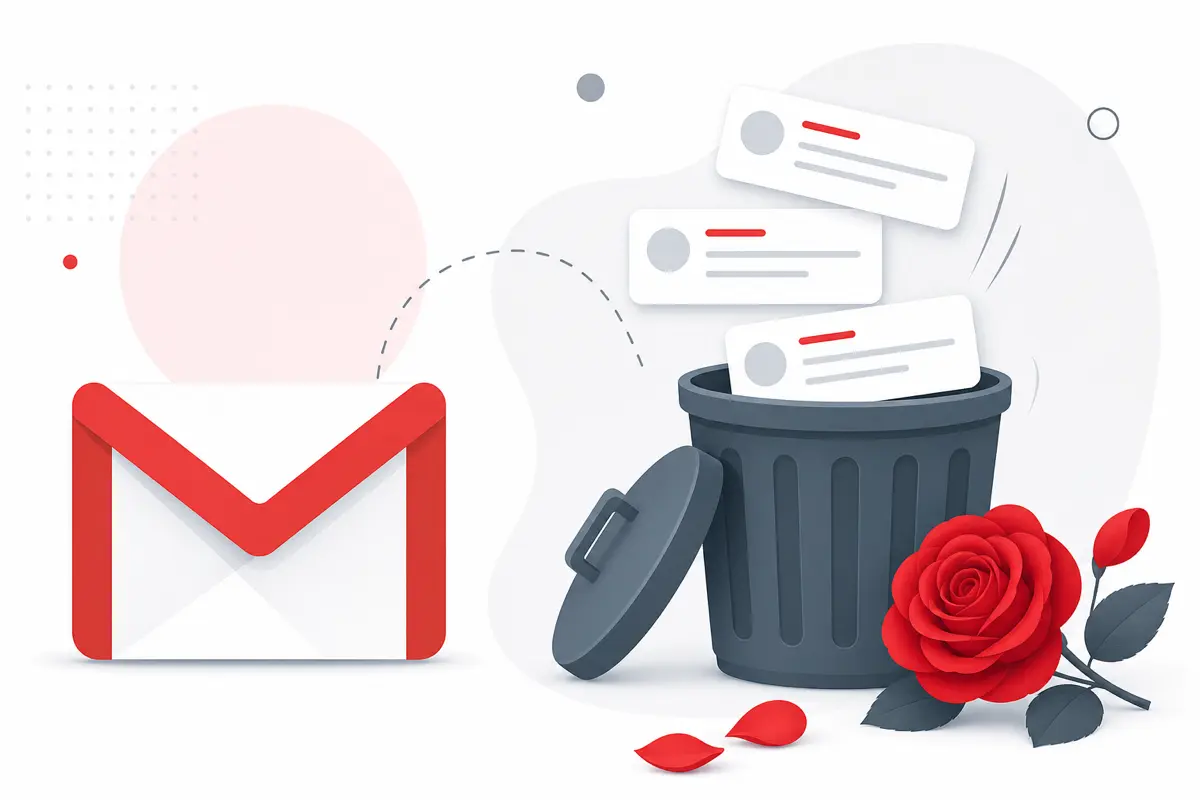
To delete email templates from your Gmail workflow, open Templates (/dashboard/templates), click the trash icon on the template card or Delete inside the Template Editor, and confirm. The template is removed from your QwicMailer library immediately.
Why delete templates at all
Template libraries grow stale quietly. Old promotions, retired product names, and duplicate versions pile up until finding the right template takes longer than writing the email fresh. Periodic cleanup keeps your library fast to navigate and reduces the risk of sending outdated copy.
Aim to review your template list every month. If you have not sent a template in sixty days, it is a deletion candidate.
Signs your template library needs a cleanup
Watch for these red flags:
- You scroll past five or more templates before finding the right one.
- A colleague asks why you sent outdated pricing or an old company name.
- You have three or more versions of the same email with no clear winner.
- Template names no longer match what the content actually says.
A fifteen-minute quarterly audit prevents these problems from compounding.
Step-by-step: delete a template
 Templates
- Open Templates (
/dashboard/templates). - Find the template you want to remove — use Category filters if your library is large.
- Click the trash icon on the template card, or open the template and click Delete.
- Confirm removal.
The template disappears from your library instantly. Previously sent emails that used it remain in Sent Emails and Gmail Sent.
Before you delete: backup options
Because deletion is permanent, consider these safeguards:
- Copy content first. Open the template, select all, and paste into a Google Doc for archival.
- Overwrite instead of delete. If the template needs updating, edit it in place rather than deleting and recreating.
- Duplicate as archive. Duplicate the template, rename it "Template Name – Archive," and move it to an infrequently used category before deleting the active version.
Cleaning up duplicate templates
New template- Identify the best version.
- Edit and save if needed.
- Delete the duplicates one by one.
- Adopt a naming convention from our organize Gmail templates guide to prevent future duplication.
Templates to delete vs. keep
Delete when:
- The content references expired offers, old team members, or dead links.
- You have a newer version saved under a different name.
- The email type is no longer part of your workflow.
Keep when:
- You send it at least monthly, even with small edits.
- It serves as a baseline you customize heavily each time.
- Your team relies on consistent wording for compliance or support.
What deletion does not do
Removing templates does not:
- Delete sent emails that used the template.
- Disconnect your Gmail account.
- Affect emails already scheduled or in progress.
Your Gmail connection stays active — you simply have fewer templates in your QwicMailer library.
Rebuilding after a clean sweep
If you deleted too aggressively, rebuilding is straightforward. Start with the three emails you send most often, follow how to create email templates in Gmail, and add new ones only as patterns emerge. A lean library of five great templates beats a bloated list of fifty unused ones.
Scaling template management
QwicMailer gives you searchable categories, variable auto-fill, and send tracking — so deleting stale templates is a quick monthly habit, not a dreaded chore. Check Analytics to see which templates actually perform before you cut them.
Conclusion
Deleting outdated templates keeps your library sharp and your sends accurate. Review monthly, remove what is stale, and keep your best performers. For template management that scales with your team, try QwicMailer free.
Frequently asked questions
Deletion is permanent in QwicMailer. Before removing a template, copy the content to a doc if you might need it later, or duplicate it as an archive version first.

Sales Enablement Writer
James focuses on sales follow-ups, cadences, and templates that help reps book more meetings.
6 articles on QwicMailer
Stop rewriting emails.
Start sending smarter.
Create reusable templates, personalize every email, and send everything from your connected Gmail account.
No credit card required