Gmail canned responses — reusable pre-written emails — are best built in QwicMailer. Sign in with Google, connect Gmail, create templates with variables in the Template Editor, and send through Quick Send or Inbox replies. Your recipients see a normal Gmail message; you skip the legacy settings workflow entirely.
The canned response name change
If you learned Gmail before 2020, you knew this feature as Canned Responses — a name borrowed from customer support ticketing systems. Google renamed it to Templates and buried it in Advanced settings with no variables, no folders, and no mobile support.
Most people searching "canned responses" want the outcome — fast, consistent replies from Gmail — not a settings tutorial. QwicMailer delivers that directly.
How to create a canned response in QwicMailer
 New template
- Sign in and connect Gmail if you have not already.
- Open Templates (
/dashboard/templates) → New template. - Write your message in the Template Editor — Subject, Preheader, body.
- Add variables from the sidebar:
{{first_name}},{{company}}, etc. - Pick a Category and click Save.
Detailed walkthrough: how to create email templates in Gmail.
How to use a canned response
Quick Send- Go to Quick Send (
/dashboard/quick-send). - Pick your canned response template.
- Add recipient(s), fill variables, review Live preview.
- Click Send email.
Reply to a thread:
- Open Inbox (
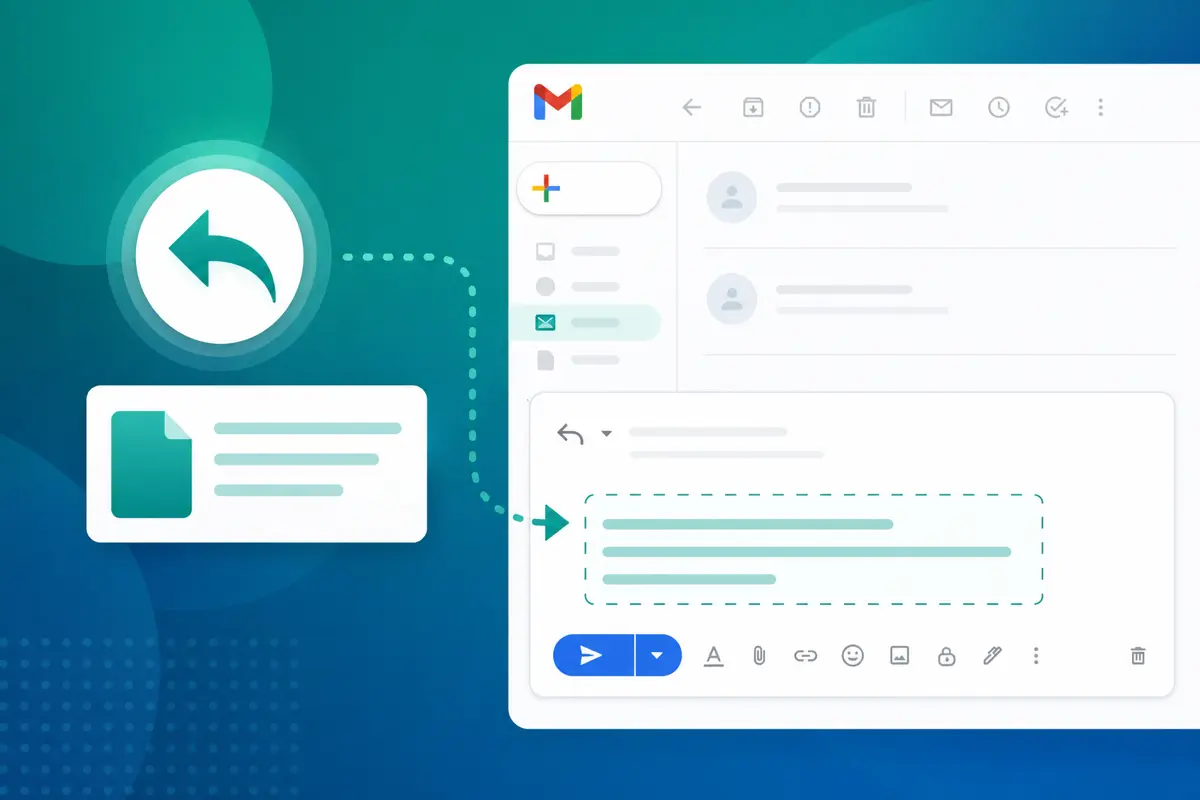
/dashboard/inbox) → select the thread. - Click Reply with template → choose your canned response.
- Fill variables → Send reply.
For reply-specific workflows, see how to insert a template in a Gmail reply.
Best use cases for canned responses
Customer support:
Email preview
Email template
From: you@gmail.comTo: {{first_name}}@company.comHi {{first_name}}, Thanks for reaching out. I looked into your account and {{resolution}}. If anything else comes up, reply to this thread and we will help right away. Best, {{agent_name}} Support Team
Sales follow-ups:
Email preview
Email template
From: you@gmail.comTo: {{first_name}}@company.comHi {{first_name}}, Circling back on my note from last week. Still happy to walk through how {{product}} could help {{company}}. Worth a 10-minute call?
Scheduling:
Email preview
Email template
From: you@gmail.comTo: {{first_name}}@company.comHi {{first_name}}, Would any of these times work for a quick call? - Tuesday 2pm ET - Wednesday 10am ET - Thursday 3pm ET Let me know what fits best.
Canned responses vs. Smart Reply vs. QwicMailer
| Feature | Gmail Canned Responses | Smart Reply | QwicMailer Templates |
|---|---|---|---|
| You write the content | Yes | No (AI-generated) | Yes |
| Auto-fill variables | No | No | Yes |
| Team sharing | No | No | Yes |
| Open tracking | No | No | Yes |
Smart Reply is useful for one-line acknowledgments. QwicMailer canned responses handle longer, repeatable messages with personalization and tracking.
Managing your canned response library
Templates- Edit: Templates → Edit → Save. Guide: edit saved Gmail template.
- Delete: Trash icon on the card or Delete in the editor. Guide: delete Gmail templates.
- Organize: Use categories and naming prefixes. Guide: organize Gmail templates.
Common canned response mistakes
- Saving responses with real client names instead of variables.
- Never updating after a policy or pricing change.
- Creating fifty responses when five well-written ones would suffice.
- Relying on Gmail's hidden settings instead of a proper template library.
Conclusion
Gmail canned responses work best when you build them in QwicMailer — variables, categories, and tracking included. Send from your real Gmail address without touching Advanced settings. Try QwicMailer free.
Frequently asked questions
They solve the same problem — pre-written reusable emails. QwicMailer templates add variables, categories, tracking, and a proper editor. Gmail sends the final message.

Email Templates Editor
Ryan helps teams build reusable Gmail templates that save hours every week without losing a personal touch.
10 articles on QwicMailer
Stop rewriting emails.
Start sending smarter.
Create reusable templates, personalize every email, and send everything from your connected Gmail account.
No credit card required