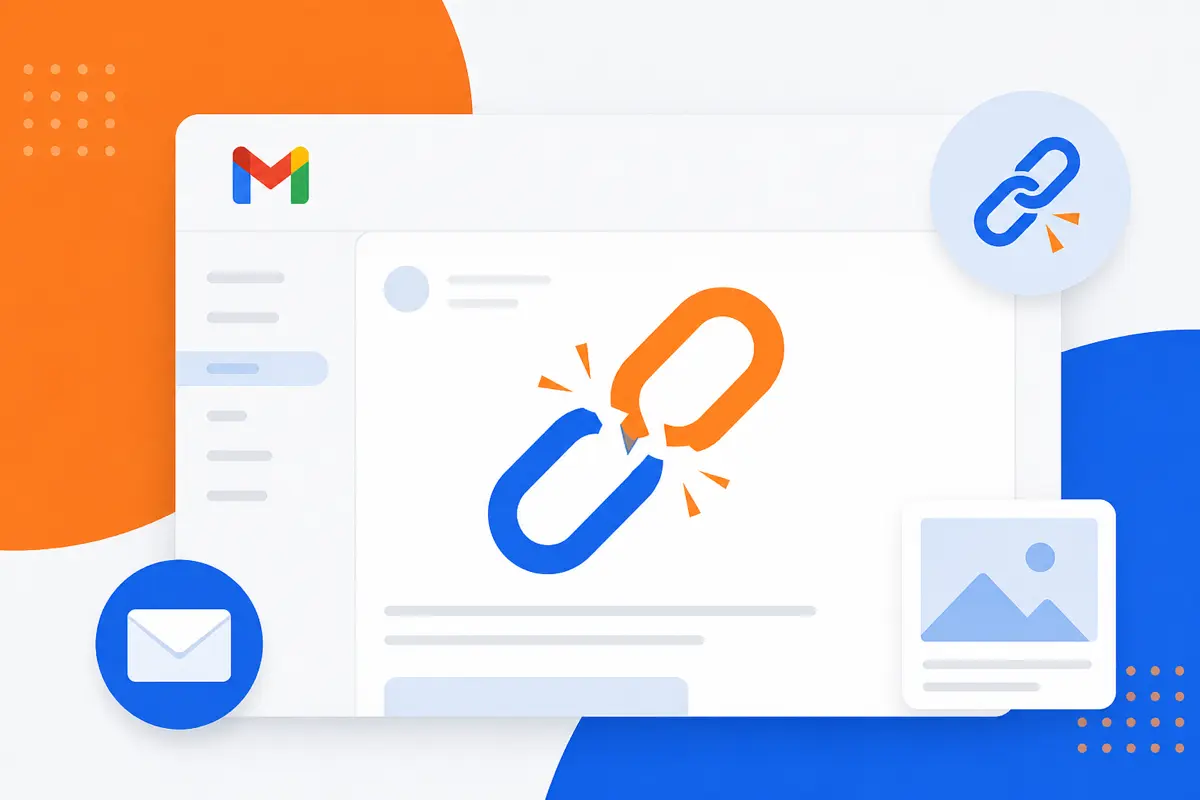
Gmail template links not working usually means URLs were typed as plain text, pasted from rich-text sources with hidden characters, or saved with expired tracking links. QwicMailer fixes this by letting you build links in the Template Editor and click-test every URL in Live Preview before Quick Send.
Why Gmail links fail
Gmail only reliably stores hyperlinks created through its chain icon. Auto-linked plain text fails on some clients. Templates are snapshots — when a destination moves, every saved copy stays stale until manually overwritten. Word and Slack pastes embed invisible characters that break clicks. These issues often appear alongside image loading problems when HTML comes from external design tools.
You do not need Gmail Settings → Advanced → Templates. QwicMailer is your template library; Gmail is only the sending channel after you connect Google once.
Fix links in QwicMailer Template Editor
 New template
On Dashboard (/dashboard), click Approve Gmail permissions, or go to Profile → Gmail access → Connect Gmail.
- Open Templates → select the template → Edit.
- Highlight anchor text and add a hyperlink with the editor link tool — or use Insert → CTA button for prominent calls to action.
- Always include https:// in the full URL.
- Open Preview (desktop and mobile modes) and click every link.
- Click Save, then run Quick Send with Live preview as a final click test.
Templates → click the template or Edit → change fields in the Template Editor → Save. To remove: trash icon on the card or Delete in the editor.
Link checklist before send
- Use the editor tools, not raw pasted URLs from Slack or Word.
- Avoid single-use tracking links that expire in 30 days — use stable domain URLs.
- Update stale paths when marketing moves a landing page — edit and Save in QwicMailer.
- Test with variables filled —
{{booking_link}}must resolve to a real https URL in Quick Send. - Preview on mobile — cramped CTA buttons fail touch targets; mobile preview catches this.
Template with reliable links
Email preview
Resources for {{first_name}}
From: you@gmail.comTo: {{first_name}}@company.comHi {{first_name}}, Here are the links we discussed: - Product overview: https://yoursite.com/product - Schedule a call: https://yoursite.com/book - Support docs: https://yoursite.com/help Apply hyperlinks or Insert → CTA in Template Editor before saving. Best, {{your_name}}
Convert each URL to a proper hyperlink, preview clicks, save, and send.
Send with preview guardrails
Quick Send- Go to Quick Send (
/dashboard/quick-send). - Pick your template.
- Add recipient(s) from Contacts or type an address — choose Single email or Bulk send.
- Fill any variable fields; review the Live preview.
- Click Send email. The message sends from your connected Gmail address and appears in Gmail Sent.
Step 4 — Live preview — is your last chance to click every link with real variable values before Gmail delivers the message.
Updating links when destinations change
Marketing teams rename landing pages constantly. In Gmail, you must find every saved template and overwrite manually. In QwicMailer, open Templates, search for the old URL, edit each match in Template Editor, and Save. Use consistent CTA labels ("Book a demo") so future URL swaps require only one edit per template — not a compose-window archaeology session.
CTA buttons vs inline links
For primary actions — demo booking, signup, payment — use Insert → CTA button so the link survives mobile preview with a tappable target. Secondary references (docs, blog posts) work as inline hyperlinks. Mix both in one template, preview in mobile mode, then save. Recipients on phones thank you for the larger touch target.
Plain-text recipients
Some clients render mail as plain text. Recipients still see the raw URL — your template is not broken. QwicMailer preview shows the rich version most clients display.
When link management outgrows Gmail
Gmail cannot bulk-update URLs, track clicks per template, or swap destinations at send time. QwicMailer centralizes template management with analytics so teams know which links perform.
Conclusion
Gmail template links not working is preventable — build links in QwicMailer, preview before send, and keep URLs stable. Start free with QwicMailer for clickable templates you can trust.
Frequently asked questions
Plain-text URLs, expired tracking links, and paste-from-Word hidden characters break Gmail saves. QwicMailer lets you insert CTA buttons and hyperlinks in the Template Editor, then test in Live Preview.

Gmail Productivity Coach
David shares practical Gmail tips, shortcuts, and inbox habits to help professionals reclaim their time.
9 articles on QwicMailer
Stop rewriting emails.
Start sending smarter.
Create reusable templates, personalize every email, and send everything from your connected Gmail account.
No credit card required