When Gmail templates are not showing, the problem is usually Gmail itself — a hidden submenu, desktop-only access, and no team library. QwicMailer replaces that fragile workflow with a dedicated template workspace at /dashboard/templates.
Why Gmail's template menu fails
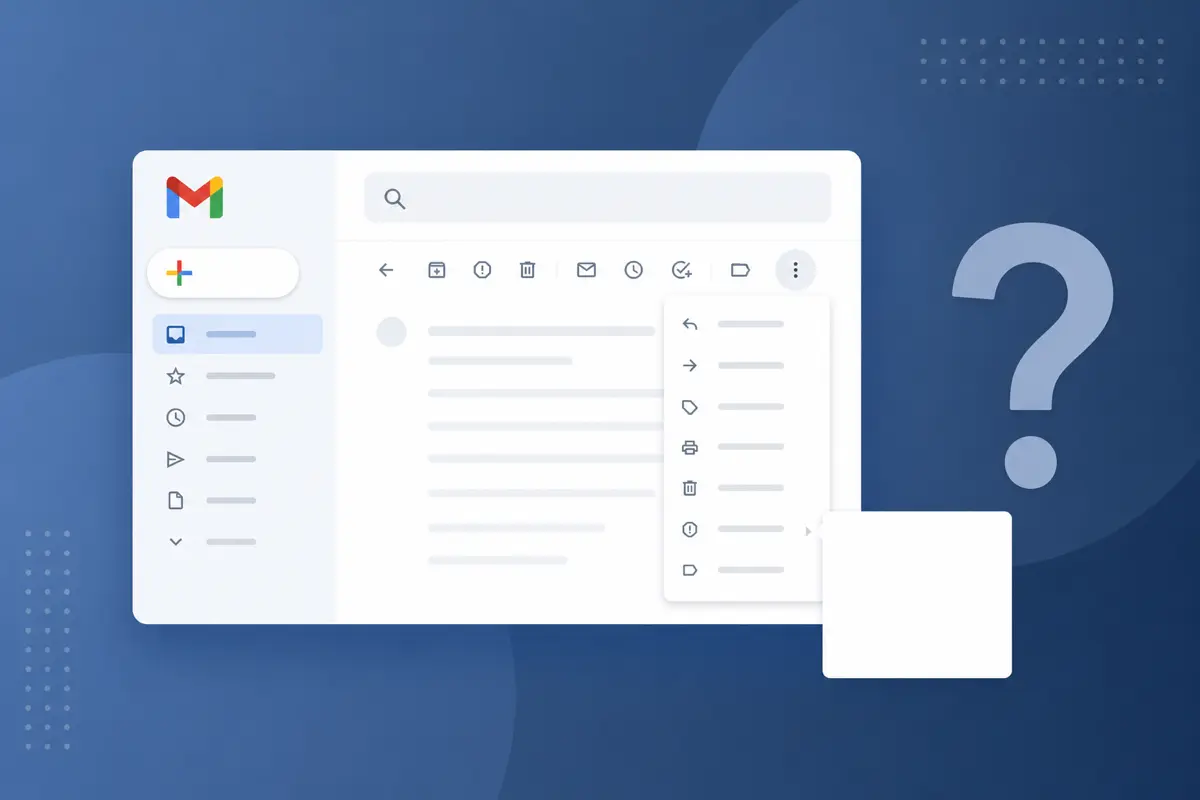
Gmail stores templates inside the compose window's three-dot menu. That design breaks in predictable ways: the option never appears on mobile, browser extensions hide menu items, Workspace admins block the underlying feature, and even power users forget where "Canned responses" lives after a UI update. You spend more time troubleshooting the menu than sending email.
You do not need Gmail Settings → Advanced → Templates. QwicMailer is your template library; Gmail is only the sending channel after you connect Google once.
10 reasons to use QwicMailer Templates instead
 Templates
Templates library — browse, search, and open any saved template.
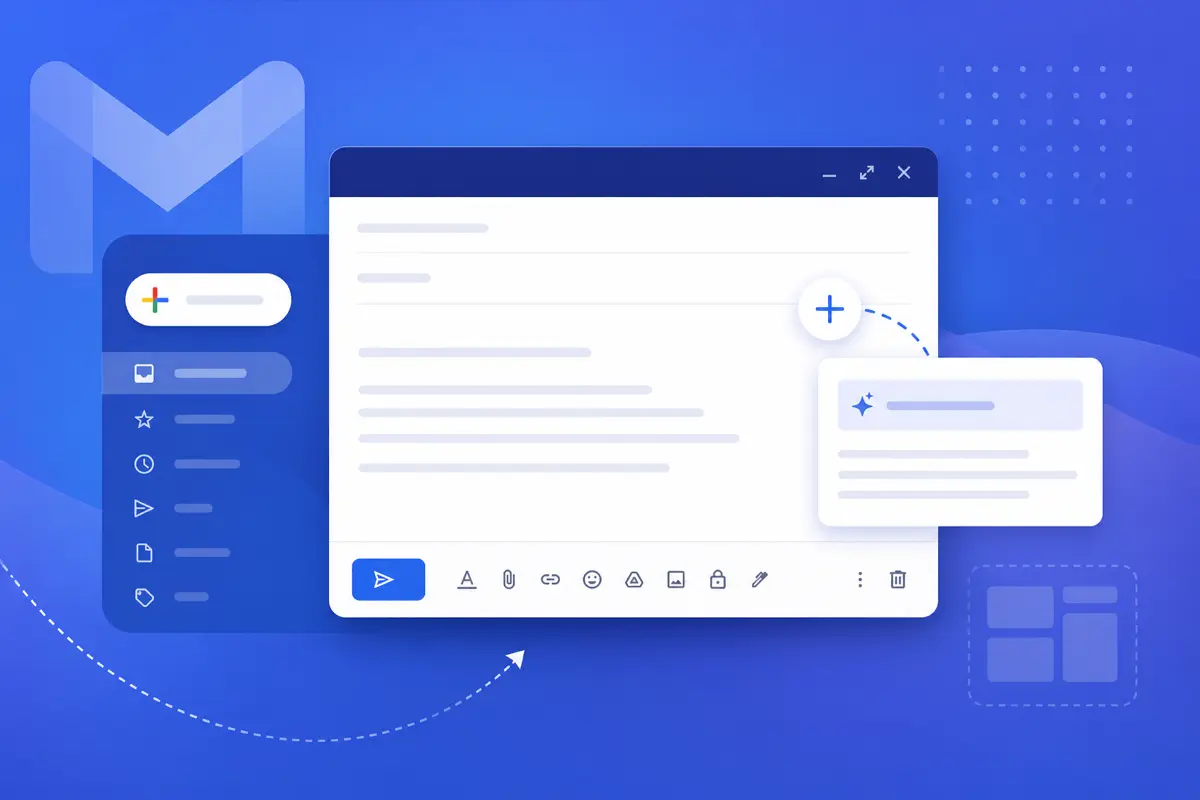
1. Visible library, not a buried submenu. Open Templates in the QwicMailer sidebar — every saved message is on one screen with search and categories.
2. Works when Gmail's menu does not. No dependency on compose-window settings that admins can disable or extensions can break.
3. Mobile-friendly access. Pick a template from Quick Send in your phone browser; Gmail's native insert menu simply is not there on iOS or Android.
4. Auto-filled variables. Use {{first_name}}, {{company}}, and other placeholders that populate before send — not manual find-and-replace.
5. Live preview before send. Review exactly how each message renders in desktop, mobile, tablet, or dark mode before it leaves your inbox.
6. Organized categories. Group templates by Sales, Recruiting, Support, or custom labels instead of a flat alphabetical list.
7. Quick Send workflow. Go from template pick to Gmail send in one flow at /dashboard/quick-send.
8. Reply with template from Inbox. Answer threads at /dashboard/inbox without opening a separate compose hunt.
9. Sends from your real Gmail address. Recipients see your normal @gmail.com or Workspace address; messages land in Gmail Sent.
10. Team-ready libraries. Share consistent outreach copy across reps — something Gmail's per-user canned responses never solved.
What Gmail users waste time on
ProfileWho benefits most from switching
Sales reps insert proven follow-ups from Quick Send instead of hunting a missing submenu before every call block. Recruiters store interview invites with {{first_name}} and {{role}} variables. Support agents reply from Inbox with the same macro library — no per-agent Gmail setup. Workspace teams sidestep admin blocks when native canned responses are greyed out. Every role shares one truth: if the Gmail menu fails, QwicMailer still works.
Get started in under two minutes
DashboardOn Dashboard (/dashboard), click Approve Gmail permissions, or go to Profile → Gmail access → Connect Gmail.
- Open Templates in the sidebar (
/dashboard/templates). - Click New template (or Start from scratch / pick a starter).
- In the Template Editor: set Subject, optional Preheader, and body text.
- Insert variables from the Variables sidebar — e.g.
{{first_name}},{{company}},{{topic}}. - Choose a Category (Sales, Recruiting, Business, etc.).
- Click Save. Your template appears in your QwicMailer library instantly.
Then send with:
- Go to Quick Send (
/dashboard/quick-send). - Pick your template.
- Add recipient(s) from Contacts or type an address — choose Single email or Bulk send.
- Fill any variable fields; review the Live preview.
- Click Send email. The message sends from your connected Gmail address and appears in Gmail Sent.
Example starter template
Email preview
Quick check-in — {{project}}
From: you@gmail.comTo: {{first_name}}@company.comHi {{first_name}}, Hope your week is going well. I wanted to touch base on {{project}} and see if you have any questions on our end. Happy to jump on a quick call if that would be helpful. Best, {{your_name}}
Save this in the Template Editor, fill variables in Quick Send, and ship — no compose-menu required. For deeper Gmail context, see our beginner's guide and templates missing from menu breakdown.
Conclusion
Gmail templates not showing is a symptom of a tool that was never meant to be your primary template library. QwicMailer gives you searchable templates, variables, previews, and reliable sending from one dashboard. Start free with QwicMailer.
Frequently asked questions
Gmail hides templates behind a buried submenu, disables the feature by default, and drops it entirely on mobile. QwicMailer puts your full library in the sidebar at /dashboard/templates — no compose-menu hunting required.

Recruitment Communications Lead
Sarah covers hiring emails, candidate outreach, and recruiter workflows that get faster responses.
5 articles on QwicMailer
Stop rewriting emails.
Start sending smarter.
Create reusable templates, personalize every email, and send everything from your connected Gmail account.
No credit card required