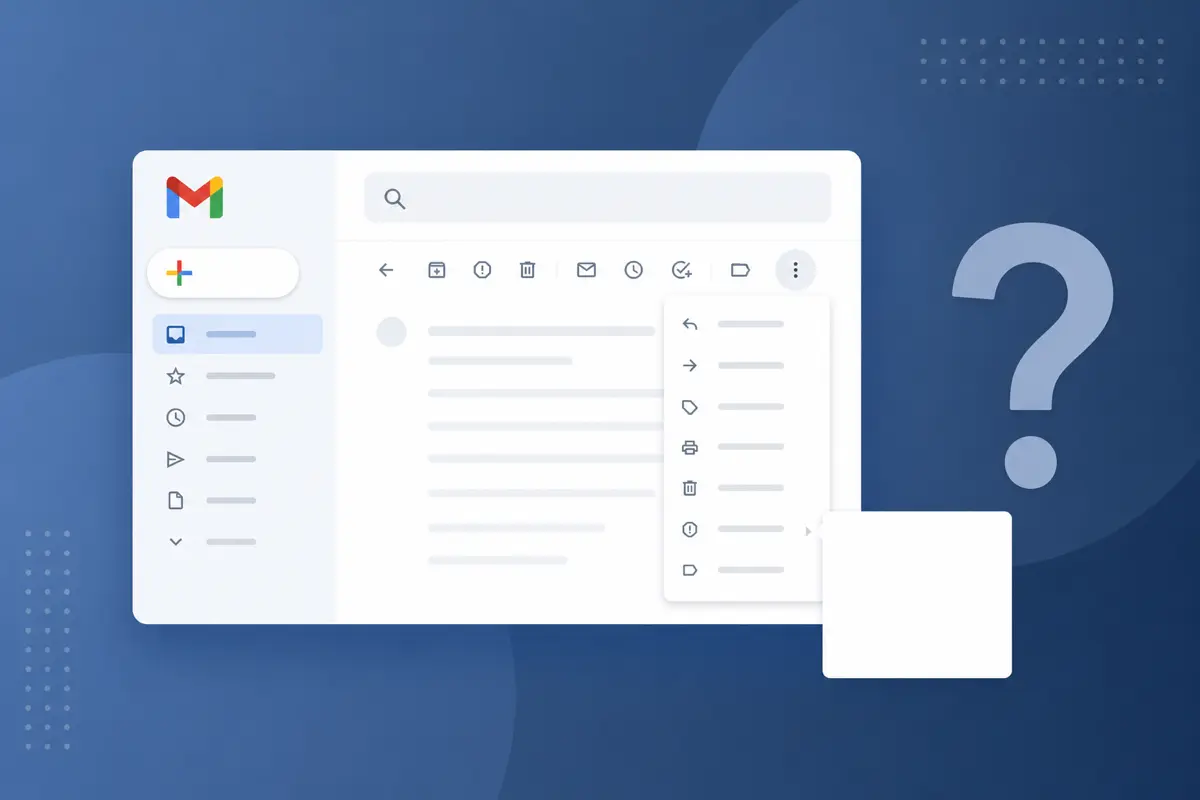
Gmail templates missing from the More menu is one of the most common Gmail frustrations — the three-dot submenu hides Templates (or legacy Canned responses), mobile never shows it, and extensions or admin policies remove it entirely. Stop searching the compose window; open Templates in QwicMailer instead.
Where Gmail hides templates
On desktop, Gmail tucks templates under the compose window's three-dot icon → Templates. That path fails when the feature is off by default, when you are on the mobile app, when browser extensions reorder menus, or when Workspace admins restrict access. Users waste minutes every week reopening Gmail templates not showing guides.
You do not need Gmail Settings → Advanced → Templates. QwicMailer is your template library; Gmail is only the sending channel after you connect Google once.
Skip the Gmail menu — open QwicMailer Templates
 Templates
Templates library — browse, search, and open any saved template.
Start free with QwicMailer → Continue with Google.
On Dashboard (/dashboard), click Approve Gmail permissions, or go to Profile → Gmail access → Connect Gmail.
- Click Templates in the QwicMailer sidebar (
/dashboard/templates). - Browse your library by category or search by name.
- Click New template to create, or Edit on any card to update.
- Send via Quick Send or Inbox → Reply with template — never touch the Gmail submenu.
Compare access paths
| Task | Gmail built-in | QwicMailer |
|---|---|---|
| Find saved templates | Three-dot menu (desktop only) | Sidebar Templates screen |
| Mobile access | Not available | Browser Quick Send |
| Create new template | Compose → submenu save | Template Editor → Save |
| Reply with template | Reply → submenu insert | Inbox → Reply with template |
Quick Send: send without the menu
Quick Send- Go to Quick Send (
/dashboard/quick-send). - Pick your template.
- Add recipient(s) from Contacts or type an address — choose Single email or Bulk send.
- Fill any variable fields; review the Live preview.
- Click Send email. The message sends from your connected Gmail address and appears in Gmail Sent.
Your message sends from your real Gmail address and appears in Sent — the compose menu never enters the workflow.
When admin policy blocks the Gmail menu
If Templates never appears no matter what you try, your organization may have restricted native canned responses. QwicMailer still works with OAuth Gmail permissions. Read why Gmail templates are disabled for context — then build your library in QwicMailer.
Starter template to save today
Email preview
Following up — {{topic}}
From: you@gmail.comTo: {{first_name}}@company.comHi {{first_name}}, Just circling back on {{topic}}. Let me know if you have questions or want to schedule time this week. Best, {{your_name}}
Save in Template Editor, access instantly from the sidebar — no menu archaeology.
Why teams switch after the menu disappears
Sales and support teams lose hours when new hires cannot find Templates on day one. Training docs that say "click the three-dot icon" fail on mobile and break after Gmail UI updates. QwicMailer onboarding is one step: open Templates in the sidebar. Managers see the same screen as reps — no per-user Gmail settings homework. Pair this guide with how to insert a template in a Gmail reply to understand what native Gmail expects, then migrate those replies to Inbox → Reply with template.
Keyboard-first workflow
Inbox/dashboard/templates in your browser. When compose opens in Gmail, leave it blank — pick the template in QwicMailer Quick Send, fill variables, and send. You never touch the three-dot menu again. Reps report saving five to ten minutes per templated email once the sidebar becomes muscle memory.New Gmail UI, same missing menu
Google's compose redesigns change icon placement but never fix the core problem: templates stay buried and mobile stays unsupported. QwicMailer's sidebar layout does not change when Gmail updates — your library URL stays /dashboard/templates regardless of Google's next interface refresh.
Conclusion
Gmail templates missing from the More menu is a design flaw, not your fault. QwicMailer puts every template one sidebar click away. Start free with QwicMailer and leave the three-dot menu behind.
Frequently asked questions
Click Templates in the left sidebar at /dashboard/templates. Every saved template appears on one screen — no three-dot menu required.

Sales Enablement Writer
James focuses on sales follow-ups, cadences, and templates that help reps book more meetings.
6 articles on QwicMailer
Stop rewriting emails.
Start sending smarter.
Create reusable templates, personalize every email, and send everything from your connected Gmail account.
No credit card required